Website Down? 12 Common Causes of Downtime and How to Fix Each One
Your website is down and customers are noticing. Here are the 12 most common causes of website downtime, how to tell which one you are facing, and how to fix it fast.
There is a particular kind of sinking feeling that comes with a message like "Is the website down?" from a customer. You open the site, it spins, and then it fails. The next ten minutes matter. If you know the usual suspects, you can usually find the problem quickly instead of guessing.
I have put together the twelve causes we see most often when monitoring websites, grouped by where the problem lives. For each one you will find the typical symptom, how to confirm it, and what to do about it.
First, confirm it is really down
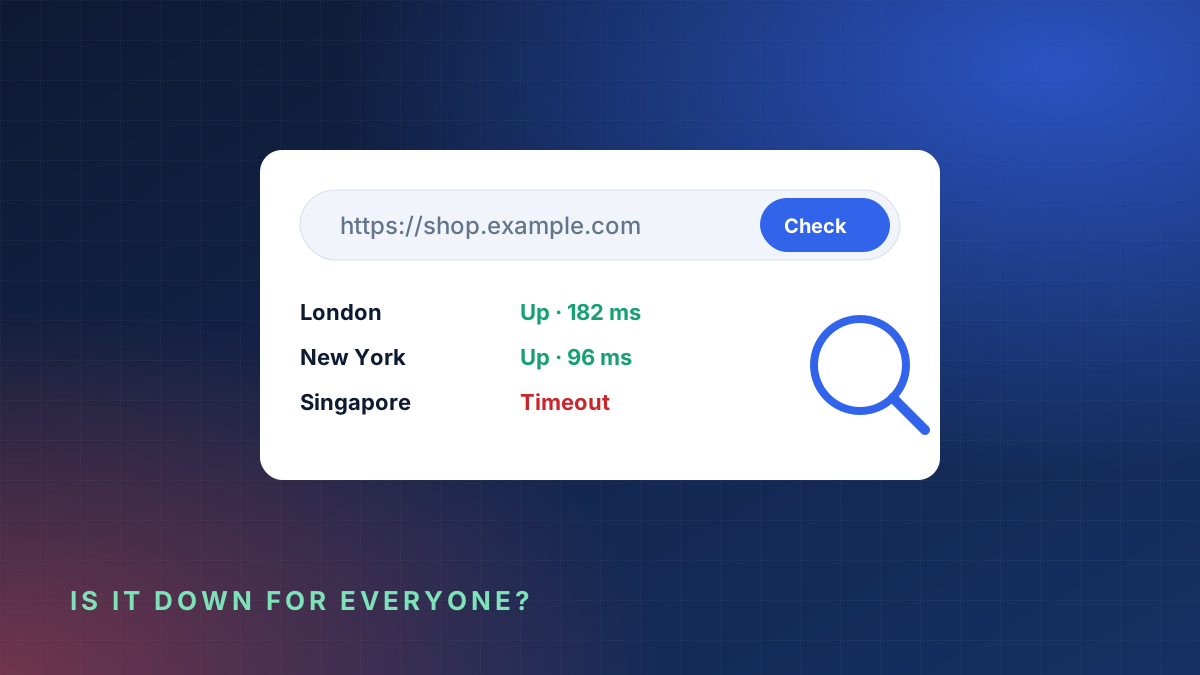
Before you start restarting servers, check that the site is down for everyone and not only for you. Your own Wi-Fi, a browser extension or a cached DNS answer on your laptop can make a healthy site look broken.
- Try the site on your phone using mobile data instead of Wi-Fi.
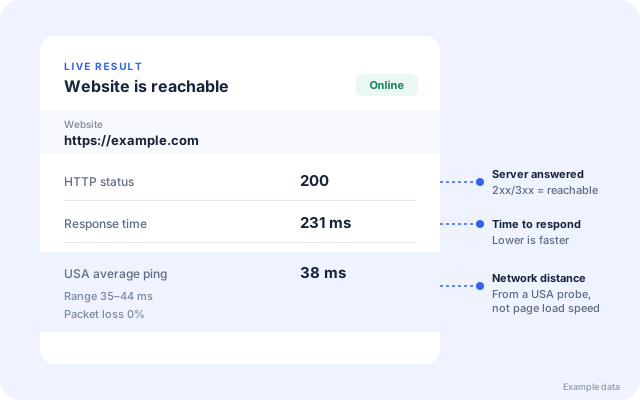
- Run it through a free website down checker, which tests from our servers rather than your network.
- Note the exact error. "This site can't be reached", a 502 page and a blank white page point to very different problems.
Write down the time you noticed the problem. When you talk to your hosting company later, an exact time makes their logs far easier to search.
Server and hosting problems
1. The server is overloaded
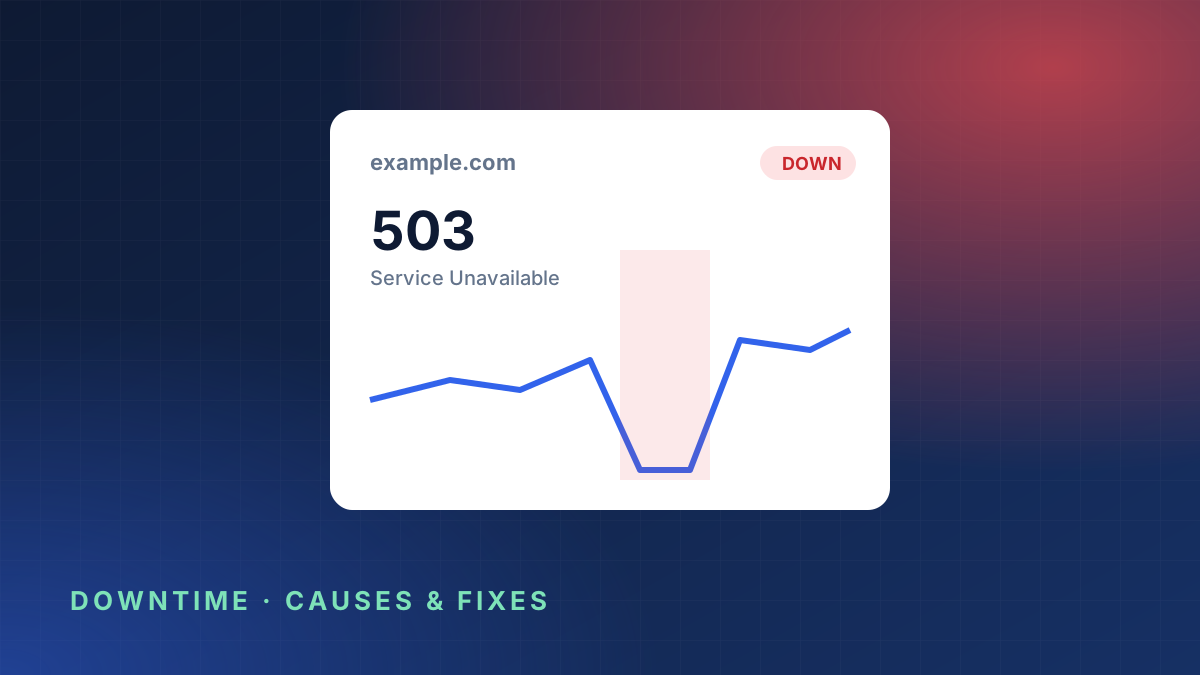
Symptom: the site is very slow, then starts returning 502, 503 or 504 errors. It often happens during a sale, a newsletter send or after a social media post takes off.
How to confirm: check CPU and memory in your hosting control panel. If both are near 100%, the server simply cannot keep up.
How to fix: restart the web service to clear stuck processes, turn on page caching, and put a CDN such as Cloudflare in front of the site so static files are not served by your server at all. If traffic spikes are regular, move to a bigger plan or a host that can scale.
2. The hosting provider has an outage
Symptom: everything on the server is unreachable, including email and the control panel.
How to confirm: check your host's status page and their social media accounts. If other customers are complaining, it is not you.
How to fix: there is little you can do except wait and keep customers informed. This is exactly when a public status page earns its keep, because people can see you are aware of the problem instead of emailing support.
3. The disk is full
Symptom: the site loads but forms, logins and checkouts fail. You may see database errors such as "could not write".
How to confirm: look at disk usage in your control panel or run df -h on the server.
How to fix: delete old backups, rotate log files and clear cache folders. Then set a reminder or alert so it does not creep up again. Large log files are the most common culprit.
4. The database is down or out of connections
Symptom: "Error establishing a database connection" on WordPress, or 500 errors on most pages while static files still load.
How to confirm: check whether the database service is running and look for "too many connections" in its log.
How to fix: restart the database service, then find out why connections piled up. Slow queries, a plugin that opens connections and never closes them, or a traffic spike are typical causes.
Code and configuration problems
5. A bad deployment or plugin update
Symptom: the site broke right after someone changed something. On WordPress this is often a white screen or "There has been a critical error on this website".
How to confirm: check what changed in the last hour. Deploy logs, plugin update history and your team chat usually tell the story.
How to fix: roll back. Restore the previous release or disable the plugin that was just updated (renaming its folder works if you cannot reach the admin area). Fix the problem properly afterwards, once the site is back.
6. A full PHP or application error log
Symptom: 500 Internal Server Error on some or all pages.
How to confirm: read the application error log. The last lines almost always name the file and line that failed.
How to fix: the log message tells you what to fix. Common examples are a missing extension after a server upgrade, a memory limit that is too low, or a syntax error in a configuration file.
7. Wrong file permissions or a broken .htaccess file
Symptom: 403 Forbidden, or a redirect loop where the browser says the page "redirected you too many times".
How to confirm: compare permissions with what your host recommends, and look for recent changes to .htaccess or your Nginx configuration.
How to fix: restore the last working configuration. Redirect loops are very often caused by forcing HTTPS in two places at once, for example in both Cloudflare and the server.
Domain, DNS and certificate problems
8. The domain name expired
Symptom: the site, and usually email, disappear completely. Sometimes a parking page from the registrar appears instead.
How to confirm: run a domain WHOIS lookup and check the expiry date.
How to fix: renew the domain at your registrar straight away. Most registrars allow renewal during a grace period, but the longer you wait, the more expensive and stressful it gets. Turn on auto-renew and keep the payment card up to date.
9. DNS records were changed or deleted
Symptom: "DNS_PROBE_FINISHED_NXDOMAIN" or "server IP address could not be found", often after moving hosts or changing nameservers.
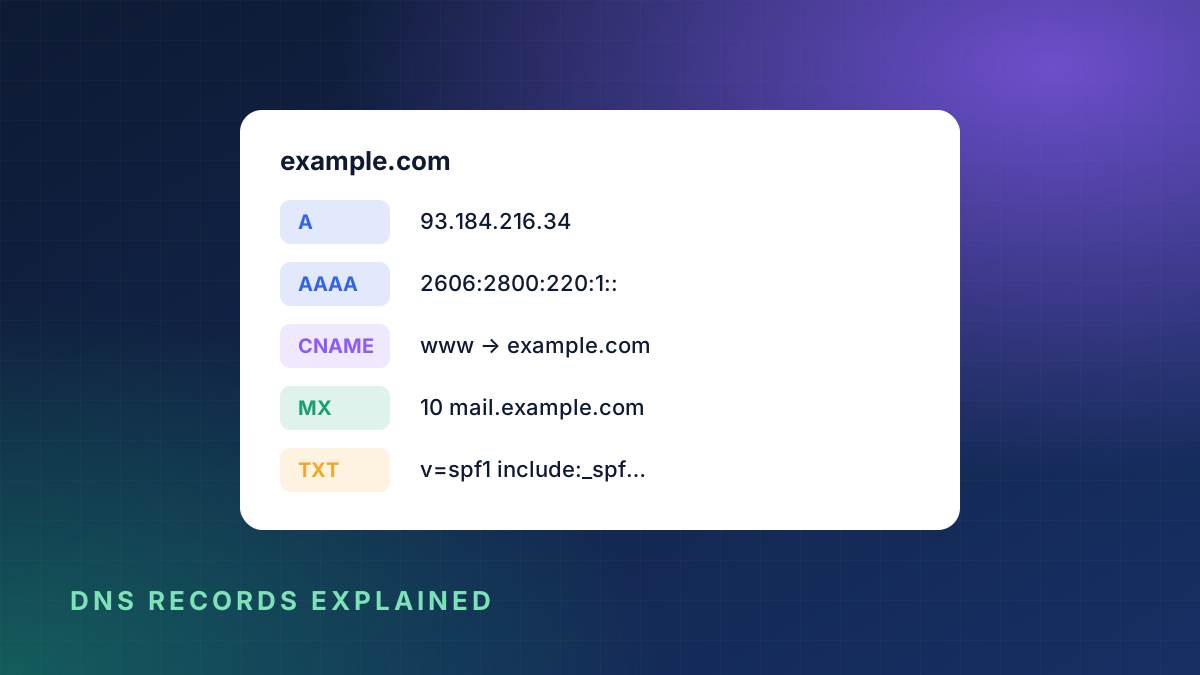
How to confirm: use a DNS lookup to see what the world currently sees for your A, AAAA and CNAME records.
How to fix: point the records back to the right server. Remember that DNS changes can take time to spread, depending on the TTL. If you are not sure what each record does, our guide to DNS records explained walks through them.
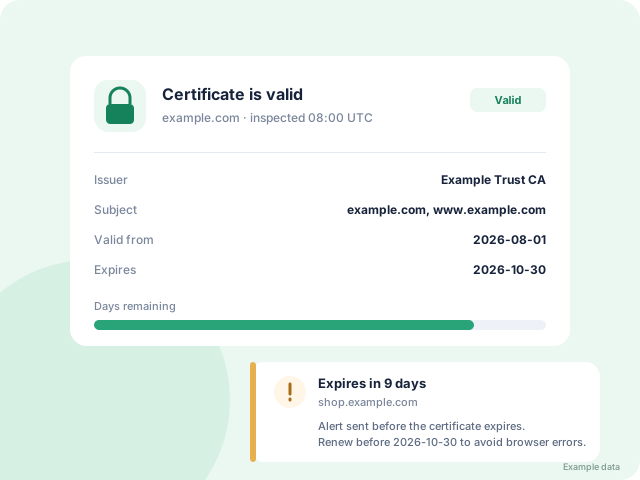
10. The SSL certificate expired
Symptom: a full-page browser warning such as "Your connection is not private". Visitors leave immediately.
How to confirm: run the SSL certificate checker to see the expiry date and the names the certificate covers.
How to fix: renew and install the certificate, then reload the web server. Our article on fixing an expired SSL certificate covers the steps in detail.
Outside forces
11. A DDoS attack or aggressive bots
Symptom: sudden, enormous traffic from many addresses, often to a single URL such as the login page or search.
How to confirm: your access log shows thousands of requests per minute from unfamiliar IP addresses or user agents.
How to fix: turn on your CDN's attack protection, rate limit login and search pages, and block abusive addresses. If you are not behind a CDN yet, this is a good reason to start.
12. A third-party service failed
Symptom: your own server is fine, but a key feature is broken. Payments fail, maps do not load, or pages hang waiting for a script.
How to confirm: open the browser's developer tools and look for failed requests to other domains. Check the provider's status page.
How to fix: load third-party scripts asynchronously so a slow provider cannot freeze your page, and show a friendly message if a payment provider is down.
How to find out before your customers do
Every cause above has one thing in common: the sooner you know, the less it costs you. Most site owners learn about an outage from a customer, sometimes hours after it started.
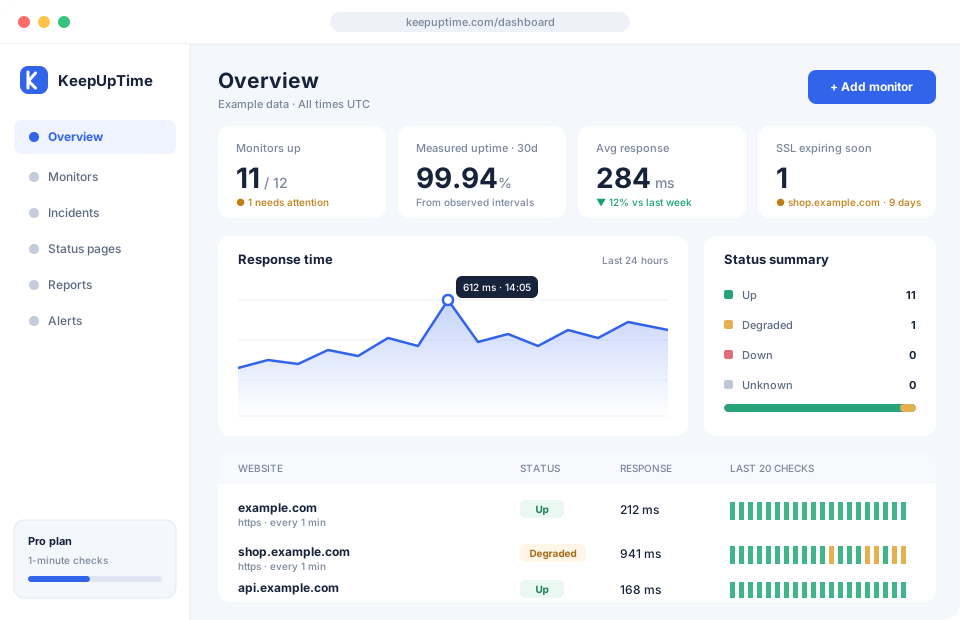
Uptime monitoring fixes that. A monitoring service checks your site every minute from outside your network, confirms a failure with a second check, and alerts you on the channel you actually look at, whether that is email, WhatsApp, Slack or Teams.
A good setup for most small businesses looks like this:
- An uptime monitor on your home page and your most important page, such as checkout or login.
- A keyword check, so you are alerted if the page loads but shows an error message instead of your content.
- SSL and domain expiry reminders, so causes 8 and 10 never happen again.
- A status page, so customers can check for themselves during an incident.
You can start a 3-day free trial and have all four running in about five minutes.
Quick reference
- 502, 503, 504: server overloaded, application crashed or upstream timed out.
- 500: application error, read the error log.
- 403 or redirect loop: permissions or HTTPS configuration.
- Site cannot be found: DNS or expired domain.
- Privacy warning: SSL certificate expired or wrong.
- Slow then down: traffic spike, attack or full resources.
Keep this list somewhere handy. The next time someone asks "is the website down?", you will know exactly where to start.