How to Check If a Website Is Down for Everyone or Just You
A site will not load, but is it really down or is the problem on your side? Follow these quick checks to find out in under two minutes, and learn what to do in each case.
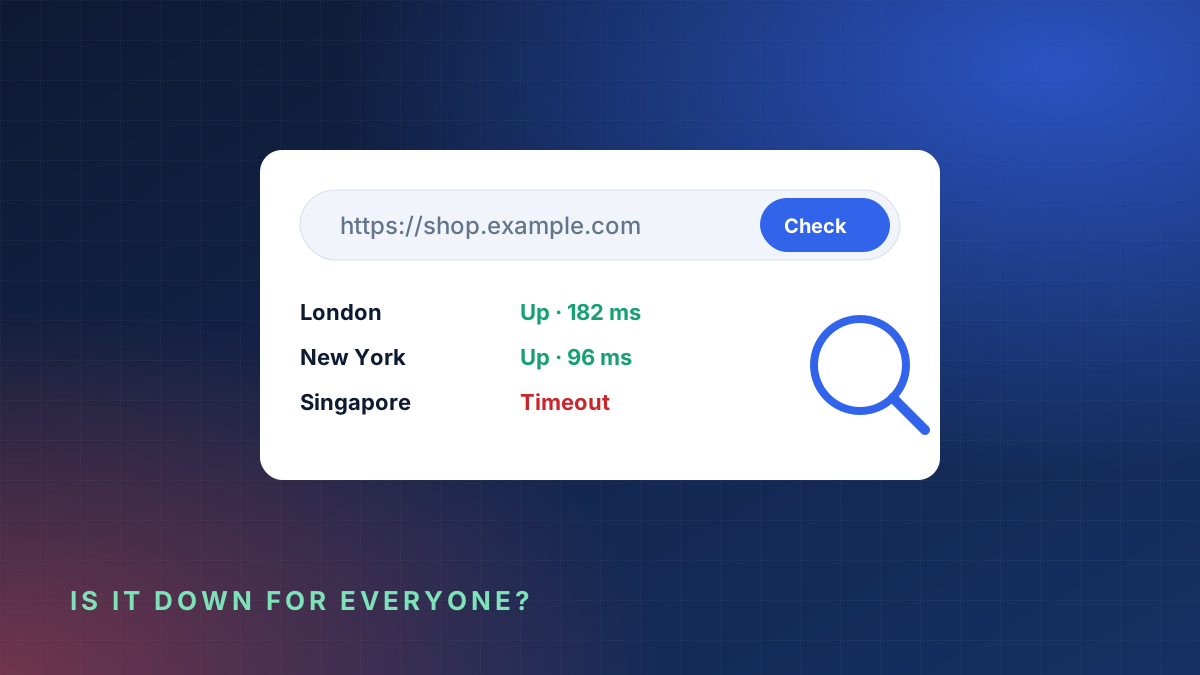
You type in a familiar address and nothing happens. Maybe you get a spinning tab, maybe an error. The obvious question is whether the website is down for everyone or whether something on your side is getting in the way.
The answer decides what you do next. If the site is down for everyone, there is no point restarting your router. If it is only you, there is no point emailing the website owner. Here is a simple, ordered set of checks that gets you to the answer in a couple of minutes.
Step 1: Read the error message
Browsers tell you more than you might think. The wording points to where the problem is.
- "This site can't be reached" or "DNS_PROBE_FINISHED_NXDOMAIN": your device cannot find the site's address. This is a DNS problem, either on your side or with the domain itself.
- "ERR_CONNECTION_TIMED_OUT": the address was found but the server did not answer. The server may be down or a firewall may be blocking you.
- "ERR_CONNECTION_REFUSED": the server answered and refused the connection. Often the web service is stopped.
- "Your connection is not private": the site's SSL certificate is invalid or expired. The server is up, but browsers will not trust it.
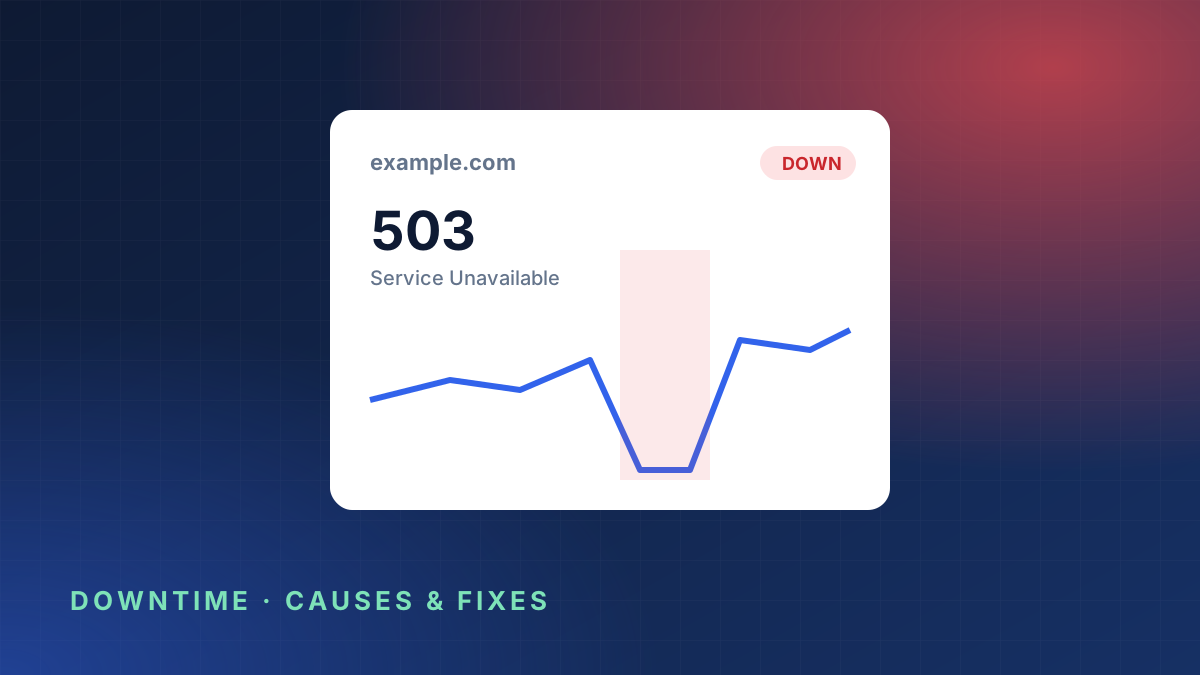
- A page with 500, 502, 503 or 504: the server is reachable but the website behind it is failing. This is almost always a problem on the site's side.
If you see a 5xx error page, you can usually skip straight to step 4. It is not you.
Step 2: Test from a different network
The fastest way to rule out your own connection is to change it.
- Turn off Wi-Fi on your phone and open the site using mobile data.
- If it loads on mobile data but not on Wi-Fi, the problem is your local network, router or internet provider.
- If it fails on both, keep going.
Step 3: Use an outside website checker
An online checker tests the site from servers far away from your network, so your browser, router and DNS are taken out of the picture.
Run the address through our free website down checker. It shows whether the site answered, the HTTP status code and how long it took.
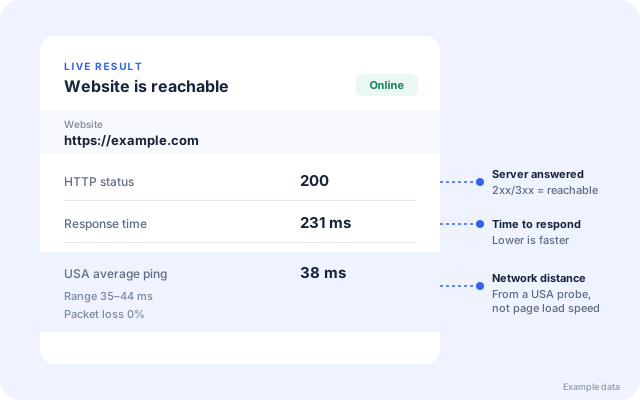
- The checker says it is up: the site is working. The problem is somewhere between you and it. Go to step 5.
- The checker says it is down: the site really is down, at least from where we tested. Go to step 4.
Step 4: It is down for everyone. What now?
If you run the website, work through the likely causes. A full list is in our guide to the 12 most common causes of website downtime, but start with the quick wins:
- Check your hosting provider's status page.
- Look at what changed recently, such as plugin updates or deployments.
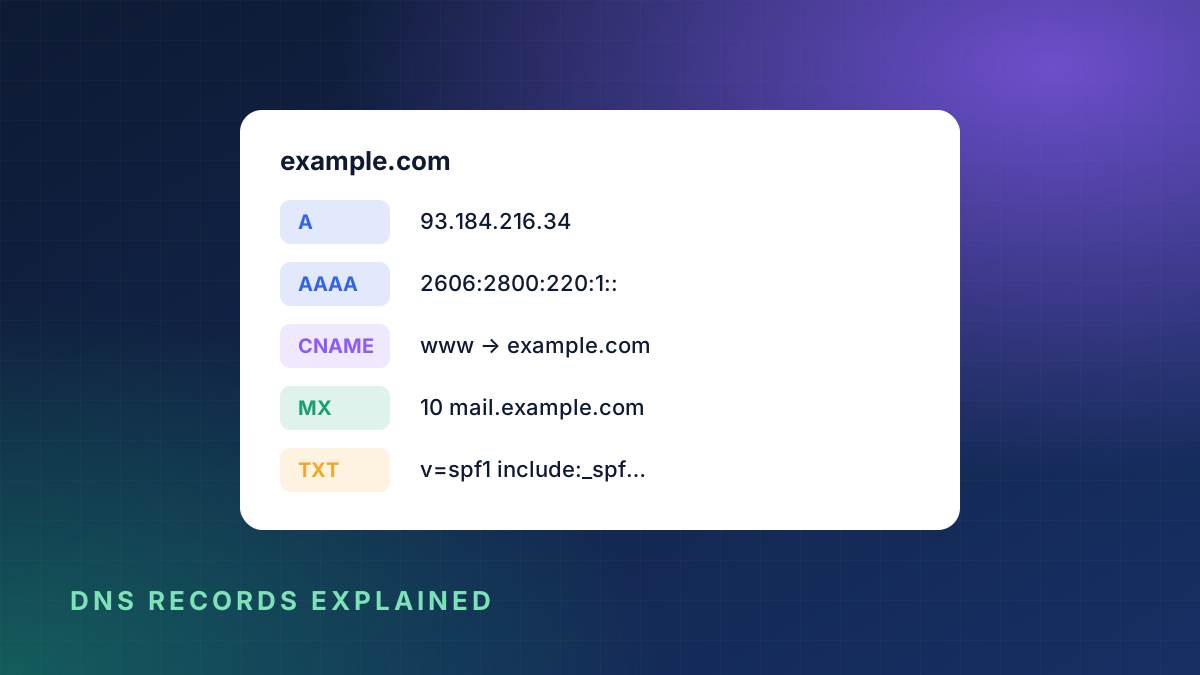
- Run a DNS lookup to make sure the domain still points to your server.
- Check the SSL certificate and the domain expiry date.
If it is someone else's website, there is nothing to fix on your side. Check the company's status page or social media for updates, and try again later.
Step 5: It is just you. How to fix it
When the site works for everyone else, try these in order. Most problems are solved by one of the first three.
Clear the browser's cache and try a private window
Open the site in a private or incognito window. If it works there, a cached file, cookie or browser extension is the problem. Clear the cache for that site or disable extensions one by one.
Flush your DNS cache
Your computer remembers DNS answers. If a site recently moved servers, your computer might still be using the old address.
- Windows: open Command Prompt and run
ipconfig /flushdns. - macOS: open Terminal and run
sudo dscacheutil -flushcache; sudo killall -HUP mDNSResponder.
Try a different DNS resolver
Your internet provider's DNS servers sometimes fail or lag behind. Switching your device or router to a public resolver such as Cloudflare (1.1.1.1) or Google (8.8.8.8) often fixes "site can't be reached" errors immediately.
Restart your router
The classic advice exists for a reason. Turn it off, wait thirty seconds and turn it back on.
Check VPNs, firewalls and blockers
VPNs, corporate firewalls, parental controls and ad blockers can all block specific sites. Turn them off briefly to test.
Check whether you are blocked
Some sites block whole countries or IP ranges, and security systems sometimes block an address after too many failed logins. If a VPN in another country lets you in, this is likely the cause. Contact the site owner.
Why a one-off check is not enough for site owners
Checking manually works when you are already looking at the problem. The trouble is that most outages happen when nobody is looking: overnight, at weekends or during a busy sale.
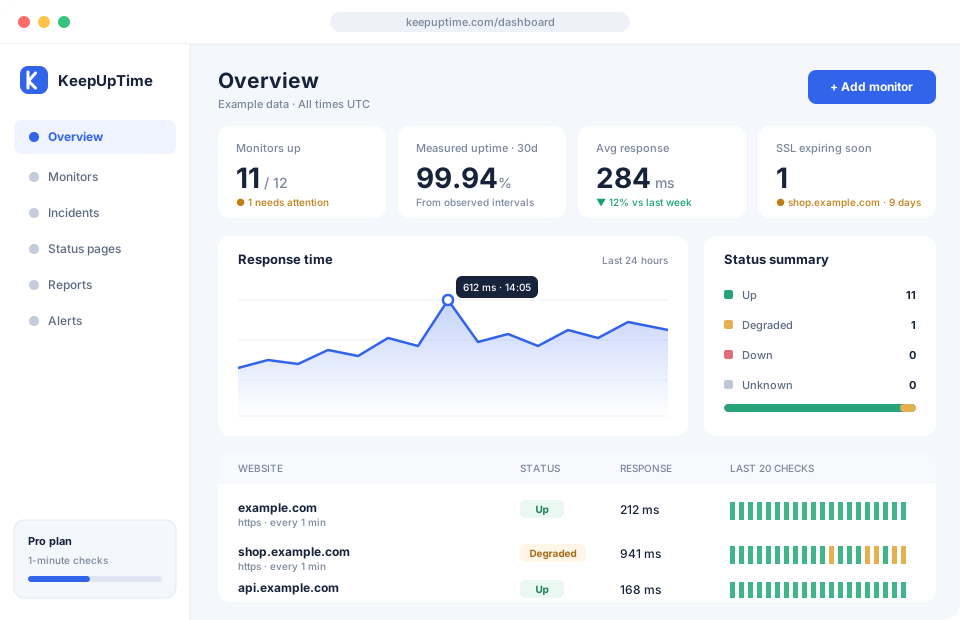
If you own a website, continuous monitoring answers "is it down?" for you, every minute, and tells you the moment the answer changes. KeepUpTime checks your site from outside your network, confirms failures with a second check to avoid false alarms, and alerts you by email, WhatsApp, Slack or Teams. You can also measure response time from up to 20 countries to spot problems that only affect some regions.
A quick checklist
- Read the error message.
- Try mobile data instead of Wi-Fi.
- Run an outside website check.
- If it is down for everyone, check hosting, recent changes, DNS, SSL and the domain.
- If it is only you, try a private window, flush DNS, change resolver, restart the router and disable VPNs or blockers.
Bookmark this page for the next time a site will not load. And if the website is yours, let monitoring do the checking so you hear about problems first.