How to Monitor Cron Jobs and Get Alerted When They Fail
Cron jobs fail silently. Learn how heartbeat monitoring works, how to add a one-line check-in to any scheduled task, and how to get alerted the moment a backup or sync stops running.
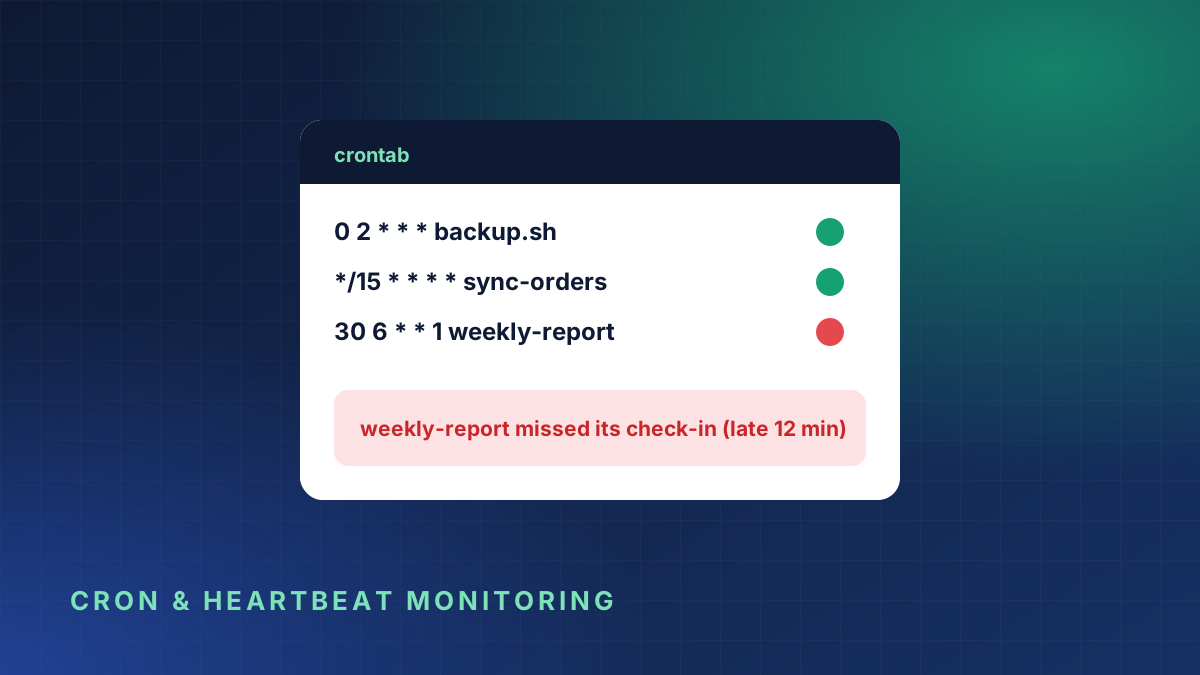
Most website problems are loud. The page breaks, customers complain and you find out quickly. Scheduled jobs are the opposite. When a nightly backup stops running, nothing visibly breaks. You only find out weeks later, usually on the day you actually need that backup.
This guide explains why cron jobs fail without anyone noticing, how heartbeat monitoring catches them, and how to set it up for the most common kinds of job.
Why cron jobs fail silently
Cron is a simple scheduler. At the time you set, it runs a command. It does not check whether the command did its job, and by default it does not tell anyone when something goes wrong.
Here are the failures we see most often:
- The server was rebooted or replaced and the crontab was never copied across.
- The script crashed because a password, API key or file path changed.
- The job hung waiting for a network connection and never finished.
- The job ran, but did nothing useful, for example a backup that wrote an empty file because the disk was full.
- Someone commented the line out while testing and forgot to put it back.
None of these produce an error on your website. That is why normal uptime monitoring, which checks whether a web page responds, cannot see them.
How heartbeat monitoring works
Heartbeat monitoring turns the problem around. Instead of a monitor checking your job, your job checks in with the monitor every time it finishes successfully.
- You create a heartbeat monitor and tell it how often the job should run, for example once a day.
- The monitor gives you a unique URL.
- At the end of your job, you request that URL. This is the "ping" or "check-in".
- If a check-in does not arrive within the expected time plus a grace period, the monitor alerts you.
This approach is sometimes called a dead man's switch. Silence is the alarm. It catches every failure in the list above, including the ones where the server itself has disappeared, because a missing server cannot send a ping.
Adding a check-in to your job
The check-in is a single HTTP request. The important detail is to send it only when the job succeeds, so a crash or error leads to an alert.
A shell cron job
Use && so the ping only runs if the previous command succeeded:
0 2 * * * /usr/local/bin/backup.sh && curl -fsS -m 10 --retry 3 https://keepuptime.com/api/heartbeat/YOUR-TOKEN > /dev/nullThe -m 10 sets a timeout so a network problem cannot make the job hang, and --retry 3 handles a brief blip.
Inside a script
If your job is a script, ping at the very end, after everything important has finished:
#!/bin/sh
set -e
pg_dump mydb > /backups/mydb.sql
test -s /backups/mydb.sql
curl -fsS -m 10 https://keepuptime.com/api/heartbeat/YOUR-TOKEN > /dev/null
set -e stops the script at the first error, and test -s checks that the backup file is not empty. If either fails, the ping never happens and you get an alert.
Windows Task Scheduler
Add a final step to your PowerShell script:
Invoke-WebRequest -Uri "https://keepuptime.com/api/heartbeat/YOUR-TOKEN" -UseBasicParsing -TimeoutSec 10 | Out-NullWordPress and application schedulers
WordPress, Laravel and similar frameworks have their own schedulers. Add the ping at the end of the scheduled task's code, after the work is done. For WordPress, remember that WP-Cron only runs when someone visits the site. A heartbeat monitor will quickly show you if quiet nights mean your tasks are not running at all.
Choosing the right schedule and grace period
The grace period is how late a check-in can be before you are alerted. Too short and you get false alarms. Too long and you find out late.
- Jobs every few minutes: set the grace period to about one extra interval.
- Hourly jobs: allow 10 to 15 minutes.
- Nightly backups: allow 30 to 60 minutes, because backup time grows as your data grows.
- Weekly reports: allow a few hours.
When you are not sure, start generous and tighten it once you see how long the job really takes.
Which jobs deserve a heartbeat?
You do not need to monitor every small task. Start with the ones that would hurt if they quietly stopped:
- Backups, both database and files. This is the most important one.
- Payment and subscription jobs, such as renewals, invoice emails and retries.
- Data syncs with your shop, CRM or warehouse.
- Certificate renewals, if you renew SSL certificates yourself.
- Clean-up jobs that stop disks from filling up.
- Email queues and newsletters.
What a good alert looks like
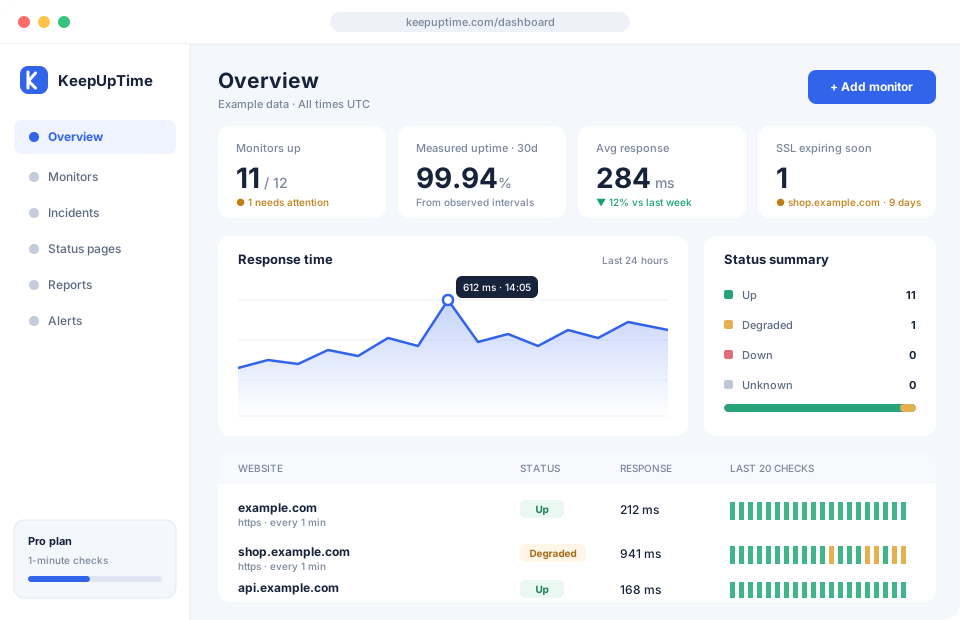
When a heartbeat is missed, the alert should tell you enough to act without logging in:
- which job is late,
- when it last checked in successfully,
- how late it is now.
With KeepUpTime the alert goes to the channels you choose, such as email, WhatsApp, Telegram, Slack, Discord or Teams. When the job checks in again, you get a recovery message, and the gap is recorded in the incident history.
Common mistakes to avoid
- Pinging at the start of the job. Then you only learn that the job started, not that it finished.
- Ignoring the exit code. Use
&&orset -e, otherwise a failed job still pings. - No timeout on the ping. A slow network should never be able to block your job.
- Sharing one heartbeat between several jobs. Give each job its own monitor, so the alert tells you exactly which one failed.
- Forgetting the server clock. Cron uses the server's time zone. Make sure the monitor's schedule matches it.
Combine it with uptime and port monitoring
Heartbeats cover the jobs that run behind the scenes. Pair them with uptime monitoring for your public pages and port monitoring for services such as your database or mail server, and you have the whole system covered: what customers see, what runs in the background and the services both depend on.
If you want to try it, start a 3-day free trial, add a heartbeat monitor and paste the check-in line into your most important job. It takes about two minutes, and it might be the best two minutes you spend on your backups this year.